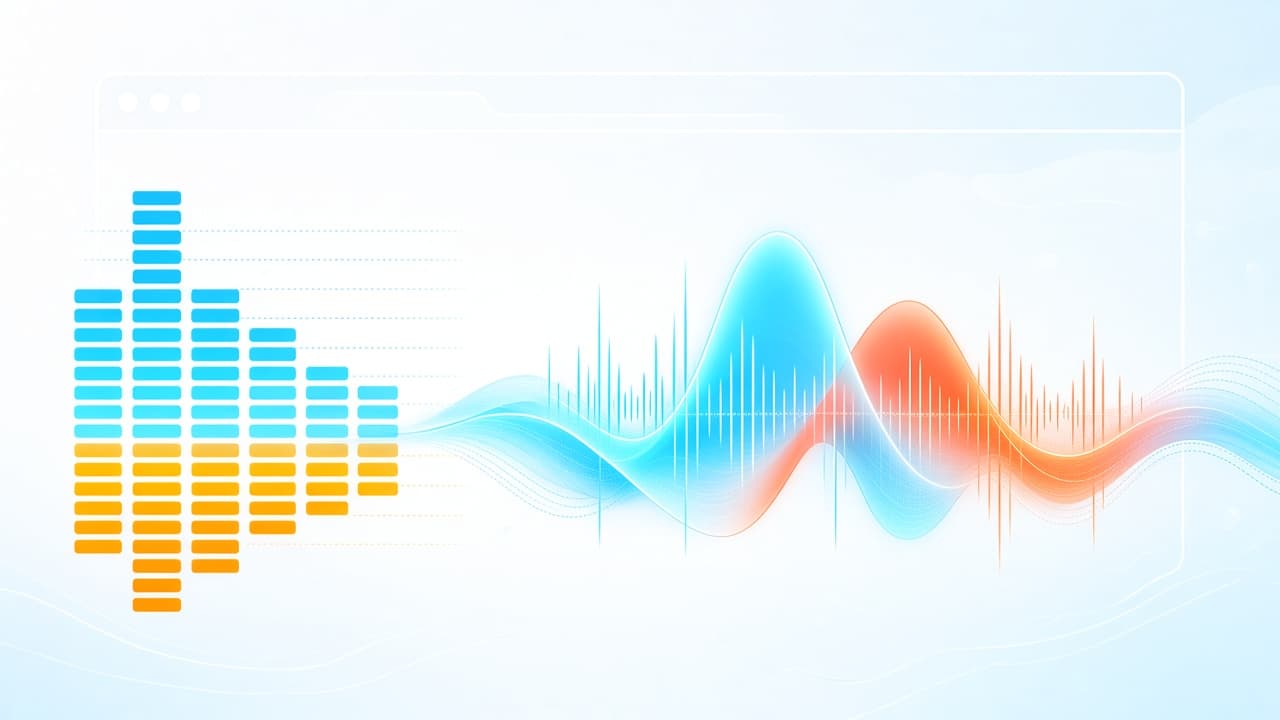
A bass boost extension is a Chrome add-on that strengthens low frequencies in tab audio so music, videos, and games feel fuller without cranking system volume. If laptop speakers or earbuds sound thin, that low-end lift is often what people mean when they search for a bass boost extension.
This guide explains how Chrome tab audio EQ and bass processing work, what to look for when you choose a tool, and which AddonUp options fit common listening setups. For a deeper EQ-focused walkthrough, see our bass booster equalizer guide.
What a bass boost extension actually does
Bass sits roughly under 250 Hz - kick drums, synth bass, rumble, and deep voices. A bass boost extension raises those bands (or a dedicated bass slider) so the low end hits harder. Some tools only boost bass. Others pair bass with a multi-band equalizer, volume gain, mute, and presets.
Unlike OS volume, a well-built Chrome extension usually processes the active tab (or selected tabs). You can thicken a Spotify or YouTube tab while leaving a quiet docs tab alone - useful when you share a machine or jump between streams.
How Chrome tab audio EQ and bass work
Most modern audio extensions rely on the Web Audio API. Chrome captures the tab stream, routes it through filters (low-shelf, peaking bands, or a bass gain node), then plays the processed signal. That is why you often need to refresh a media tab after install, and why permissions around tab capture matter.
- Tab scope: boost applies to browser audio, not every app on your PC by default.
- Latency: good tools stay near real-time; heavy chains can feel slightly delayed on video.
- Clipping: extreme bass + high volume can distort. Start with a small lift, then raise gain.
- Hardware limits: tiny laptop speakers cannot reproduce deep bass cleanly - headphones reveal more.
What to look for when choosing a bass boost extension
Store ratings alone do not tell you how a tool will sound on your setup. Use this checklist before you commit:
- Control type: simple bass slider vs full EQ bands - pick matches how much tuning you want.
- Per-tab boost and mute: essential if you juggle music, calls, and background videos.
- Privacy: prefer clear Chrome Web Store privacy disclosures and minimal data collection.
- Stability: works on YouTube, Spotify Web, Netflix, and other sites you actually use.
- Light footprint: avoid tools that spike CPU while a video is paused.
AddonUp picks for bass boost and tab EQ
If you want a shortlist rather than theory, start here. Want a side-by-side comparison first? Read top 3 equalizer bass booster extensions.
Volume Control - bass boost plus per-tab power
Volume Control combines volume gain, mute, and EQ shaping so a bass boost extension workflow fits inside one popup. Raise quiet streams, nudge the low end, and keep other tabs under control without touching OS volume.
Product page: Volume Control. Chrome Web Store: Volume Control on CWS.
Volume Controller - fast popup for everyday bass
Volume Controller keeps the path short: open the toolbar popup, lift the active tab, shape bass and EQ, mute when needed. It suits listeners who want a bass boost extension feel without a dense control panel.
Overview: Volume Controller.
Bass Booster Extension - focused low-end lift
When the job is mainly thicker bass on music and video tabs, Bass Booster Extension keeps the feature set narrow. Browse the AddonUp listing if you prefer a dedicated low-end tool over a full volume suite.
Listing: Bass Booster Extension.
Nexolut EQ - when you leave the desktop
For phone and tablet listening, Nexolut EQ brings genre presets and custom bands with bass-friendly enhancement. Useful when your Chromebook or laptop session ends and headphones move with you.
Explore: Nexolut EQ.
Quick setup tips for cleaner bass
- Install the extension, then reload the media tab so Web Audio can attach.
- Raise bass a little first - 2 to 4 dB style steps - then add volume only if the track is still quiet.
- If vocals disappear, trim muddy low-mids instead of stacking more bass.
- Test on headphones once; laptop speakers hide clipping and exaggerate boom.
- Reset to flat when switching genres so presets do not stack by accident.
FAQ
Is a bass boost extension the same as a bass booster?
Mostly yes in practice. Searchers use both "bass boost extension" and "bass booster" for Chrome tools that lift low end. Some listings are bass-only; others bundle EQ and volume.
Will it change my whole computer volume?
Usually no. Chrome extensions process tab audio. System volume stays where you left it unless the product explicitly controls OS sound.
Why does boosted bass sound muddy or distorted?
Too much gain, overlapping low-mid boost, or speakers that cannot play deep bass cleanly. Lower the bass a notch, ease overall volume, and prefer headphones for a fair test.
Where can I browse more audio tools?
Start on the AddonUp apps hub or the extensions catalog.
Next step
Pick the control style you want - bass-only or EQ plus volume - then try Volume Control, Volume Controller, or Bass Booster Extension. A few careful clicks usually beat maxing every slider - and your tabs will sound clearer for it.